Robohub.org
Developing ROS programs for the Sphero robot
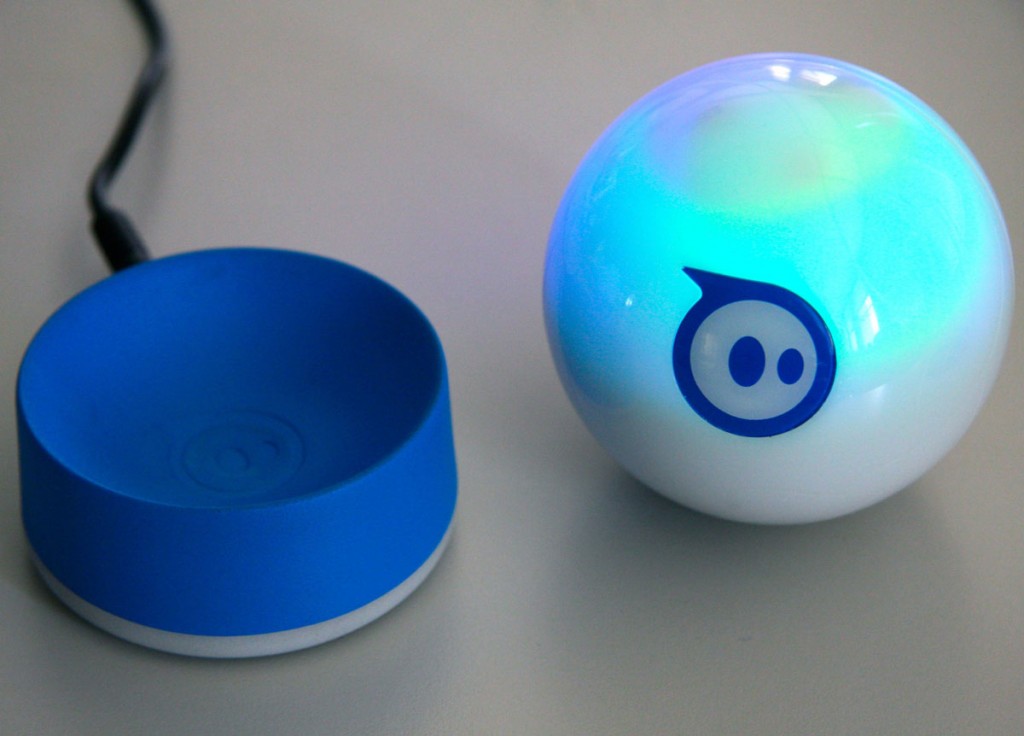
You probably know the Sphero robot. It is a small robot with the shape of a ball. In case that you have one, you must know that it is possible to control it using ROS, by installing in your computer the Sphero ROS packages developed by Melonee Wise and connecting to the robot using the bluetooth of the computer.
Now, you can use the ROS Development Studio to create ROS control programs for that robot, testing as you go by using the integrated simulation.
The ROS Development Studio (RDS) provides off-the-shelf a simulation of Sphero with a maze environment. The simulation provides the same interface as the ROS module created by Melonee, so you can test your develop and test the programs on the environment, and once working properly, transfer it to the real robot.
We created the simulation to teach ROS to the students of the Robot Ignite Academy. They have to learn ROS enough to make the Sphero get out of the maze by using odometry and IMU.
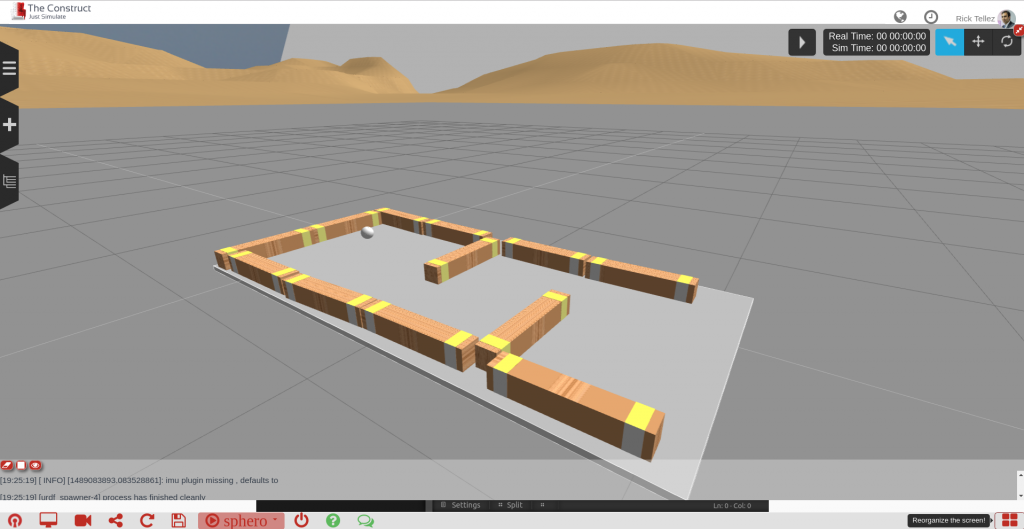
Using the simulation
To use the Sphero simulation on RDS go to rds.theconstructsim.com and sign in. If you select the Public simulations, you will quickly identify the Sphero simulation.
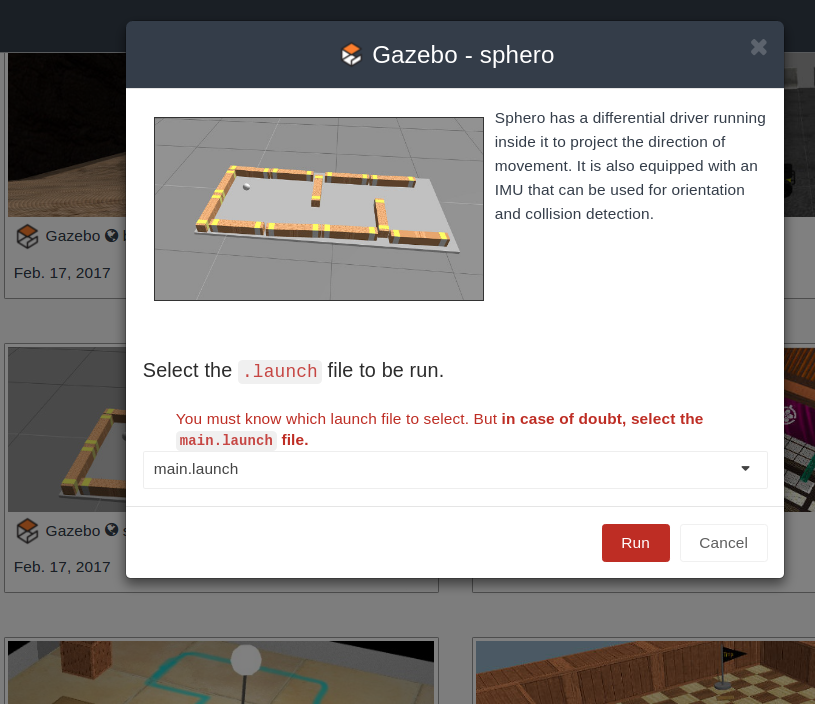
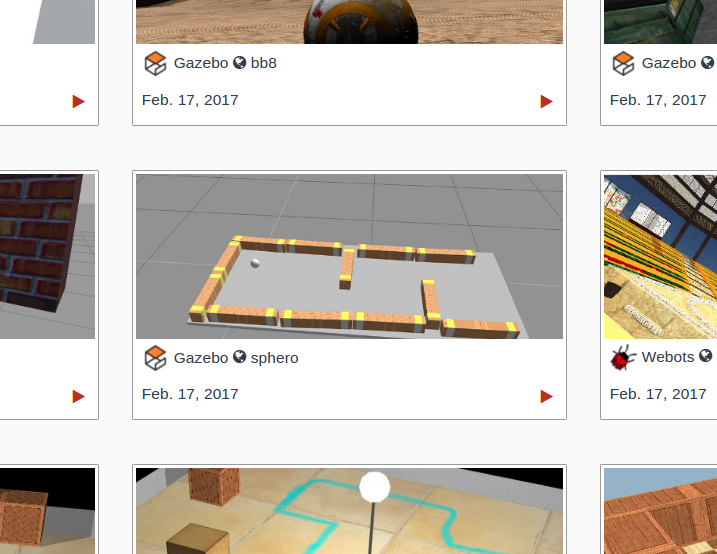 Press the red Play button. A new screen will appear giving you details about the simulation and asking you which launch file you want to launch. The main.launch selected by default is the correct one, so just press Run.
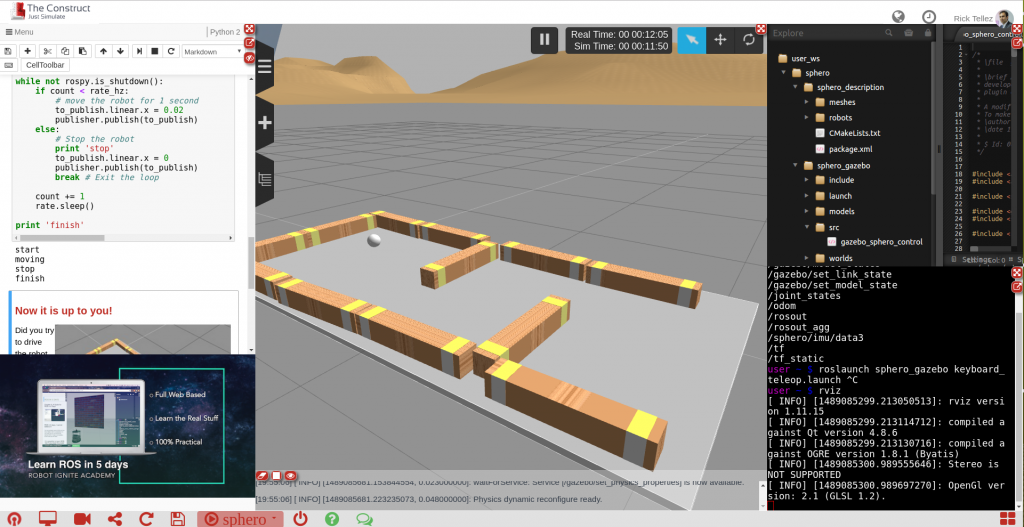
 After a few seconds the simulation will appear together with the development environment for creating the programs for Sphero and testing them.
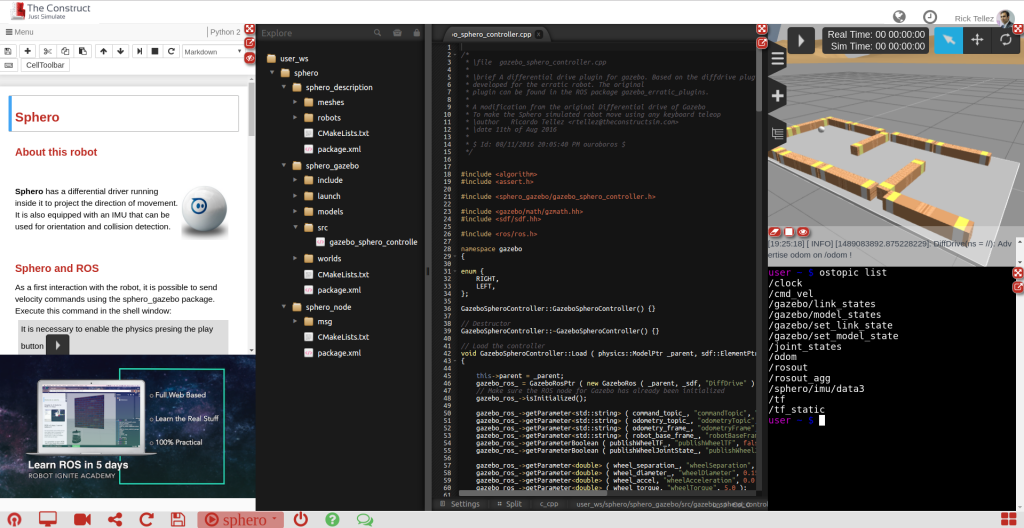 On the left hand side you have a notebook containing information about the robot and how to program it with ROS. This notebook contains just some examples, but it can be completed and/or modified at your will. As you can see it is an iPython notebook and follows its standard. So it is up to you to modify it, add new information or else. Remember that any change you do to the notebook will be saved in a simulation in your private area of RDS, so you can come back later and launch it with your modifications.
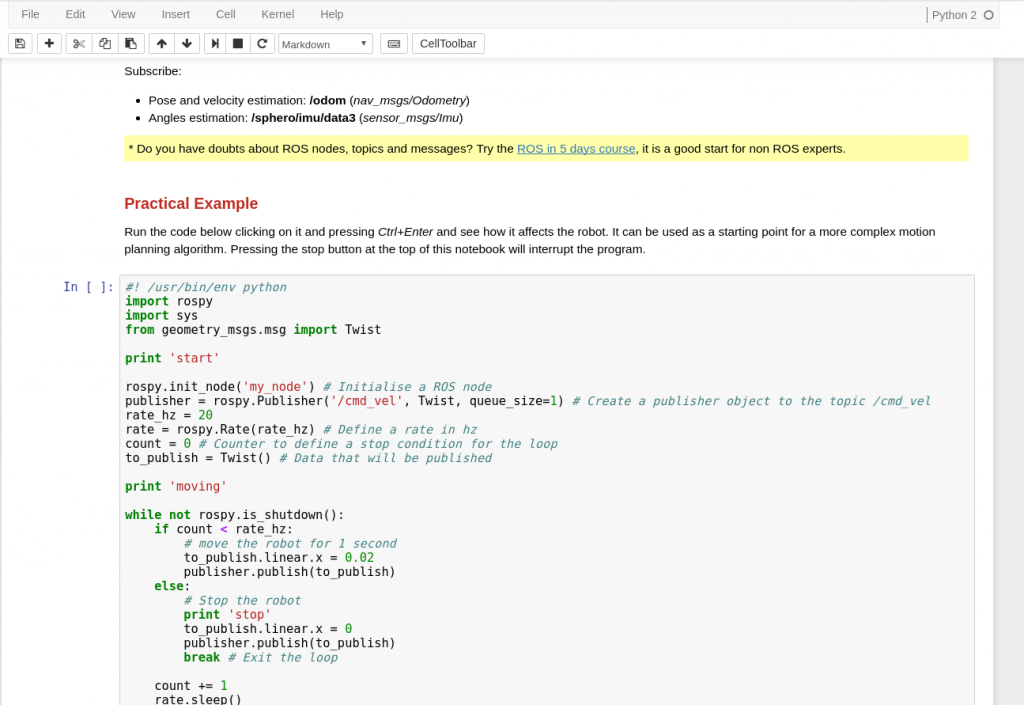
You must know that the code included in the notebook is directly executable by selecting the cell of the code (do a single click on it) and pressing the small play button at the top of the notebook. This means that, once you press that button, the code will be executed and start controlling the Sphero simulated robot for a few time-steps (remember to have the simulation activated (Play button of the simulation activated) to see the robot move).
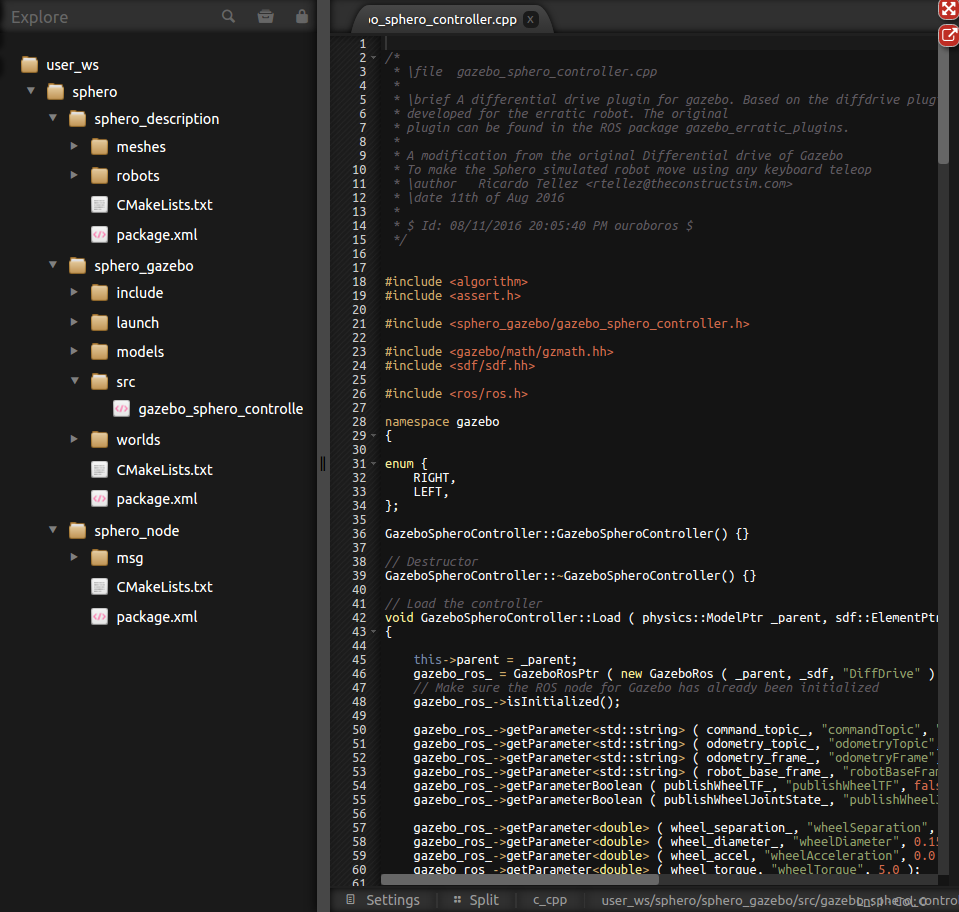
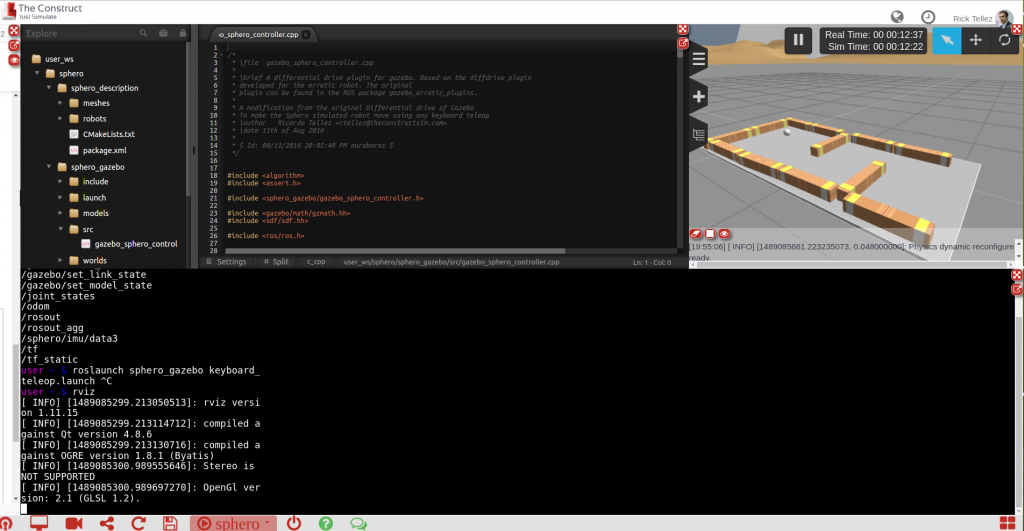
On the center area, you can see the IDE. It is the development environment for developing the code. You can browse there all the packages related to the simulation or any other packages that you may create.
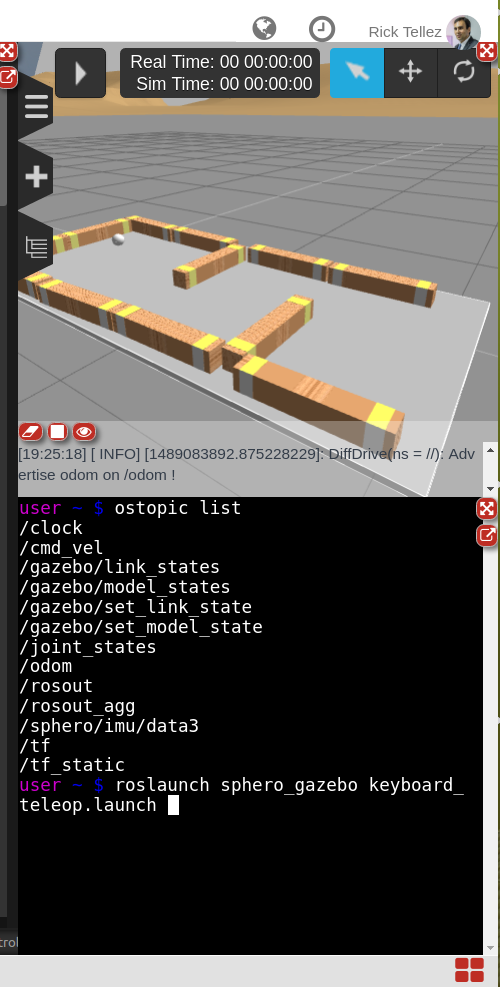
 On the right hand side, you can see the simulation and beneath it, the shell. The simulation shows the Sphero robot as well as the environment of the maze. On the shell, you can issue commands in the computer that contains the simulation of the robot. For instance, you can use the shell to launch the keyboard controller and move the Sphero around. Try typing the following:
- $ roslaunch sphero_gazebo keyboard_teleop.launch
Now you must be able to move the robot around the maze by pressing some keys of the keyboard (instructions provided on the screen).
You can also launch there Rviz, and then watch the robot, the frames and any other additional information you may want of the robot. Type the following:
- $ rosrun rviz rviz
Then press the Screen red icon located at the bottom-left of the screen (named the graphical tools). A new tab should appear, showing how the Rviz is loading. After a while, you can configure the Rviz to show the information you desire.
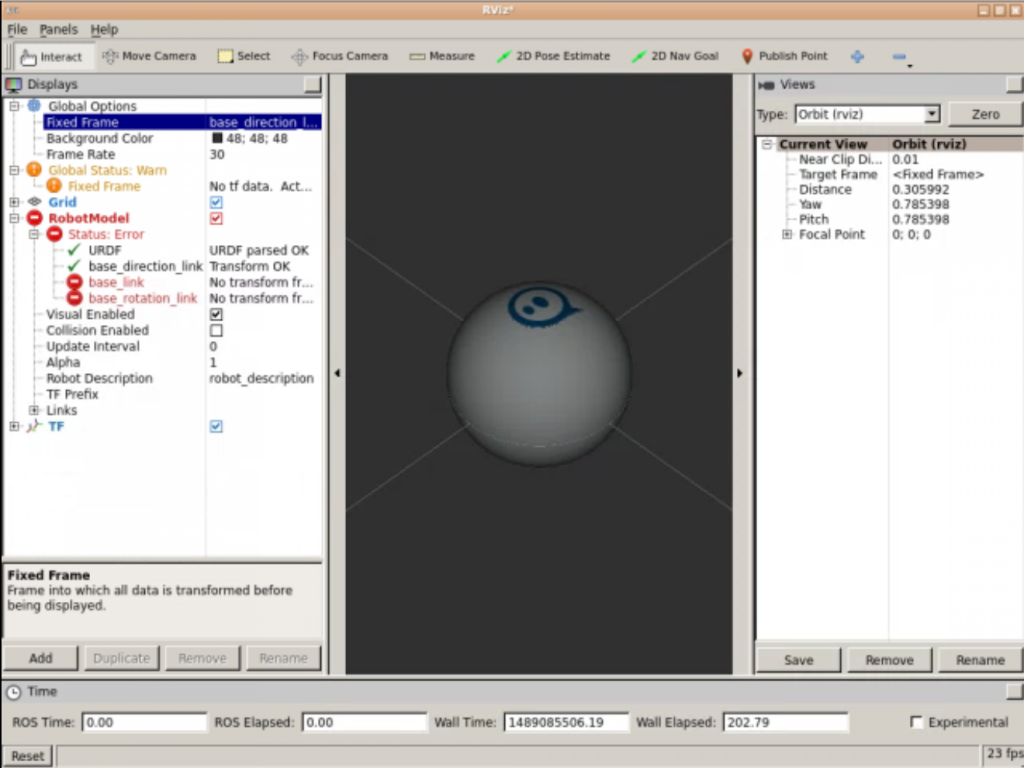 There are many ways you can configure the screen to provide more focus to what interests you the most.
 To end this post, I would like to indicate that you can download the simulation to your computer at any time, by doing right-click on the directories and selecting Download. You can also clone the The Construct simulations repository to download it (among other simulations available).
If you liked this tutorial, you may also enjoy these:
- UgCS photogrammetry technique for UAV land surveying missions
- Programming for robotics: Introduction to ROS
- Python programming your NAO robot
- Robotics, maths, python: A fledgling computer scientist’s guide to inverse kinematics
- 3-D printing hydraulically-powered robots, no assembly required
See all the latest robotics news on Robohub, or sign up for our weekly newsletter.
tags: control, household, how-to, programming, ROS, software, Sphero
AUAI is supported by: